Product
What this looks like when you run it
Real captures from the dashboard, what happens after one instruction goes out across a fleet, who on your team can reach which sites, and the questions people ask before they connect.
What running 300 sites actually looks like
Real captures, not a mockup. A fleet is a lot of places for something to go quietly wrong, so the work shows itself. Each one opens at full size.
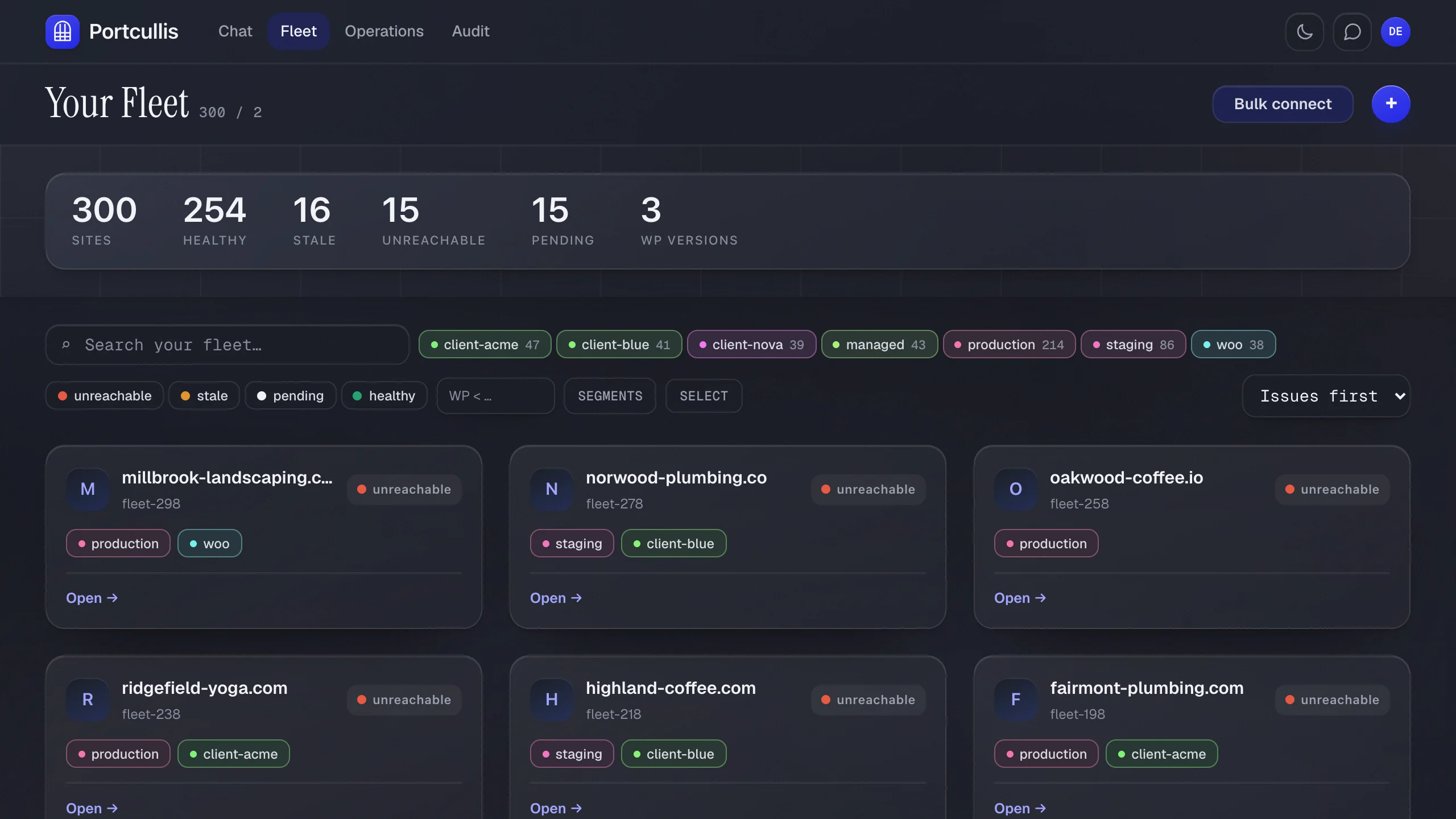
Asking is the easy part. This is what happens next.
-
01
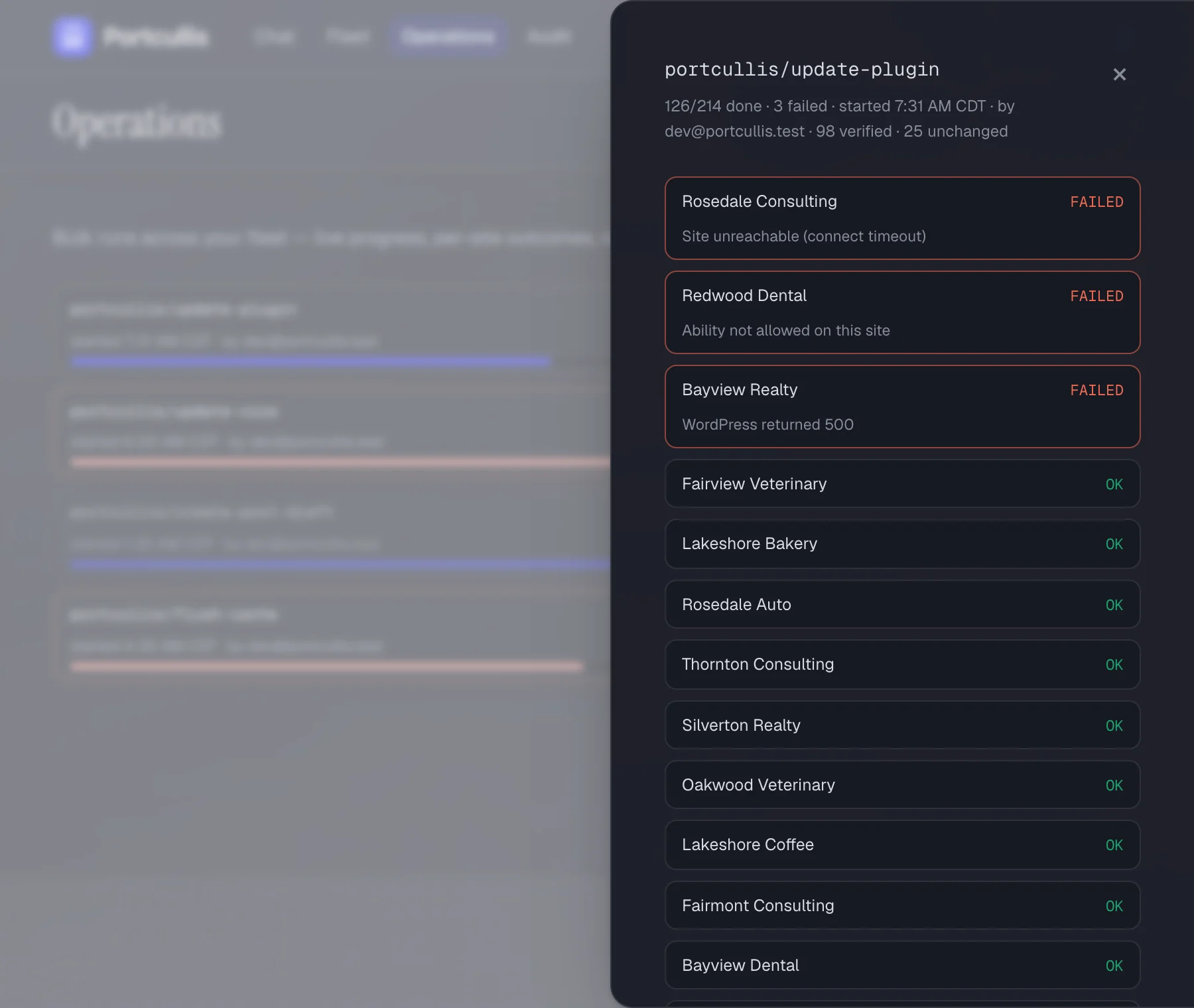
Ask once, watch every site
One instruction becomes one job per site, running side by side with live progress for each. A failure is named by site, not buried in a summary, and retry runs only those.
-
02
Chain steps, with conditions between them
Check, then act, then verify — one plan, approved up front. A step can require a condition before the next runs, so a site that fails its check is skipped and recorded rather than left half-changed.
-
03
Put it on a schedule
A read-only digest, or a sequence you already approved, on your own clock and in your organisation’s timezone. Results land in a thread you can read later, and in your inbox if you want them there.
-
04
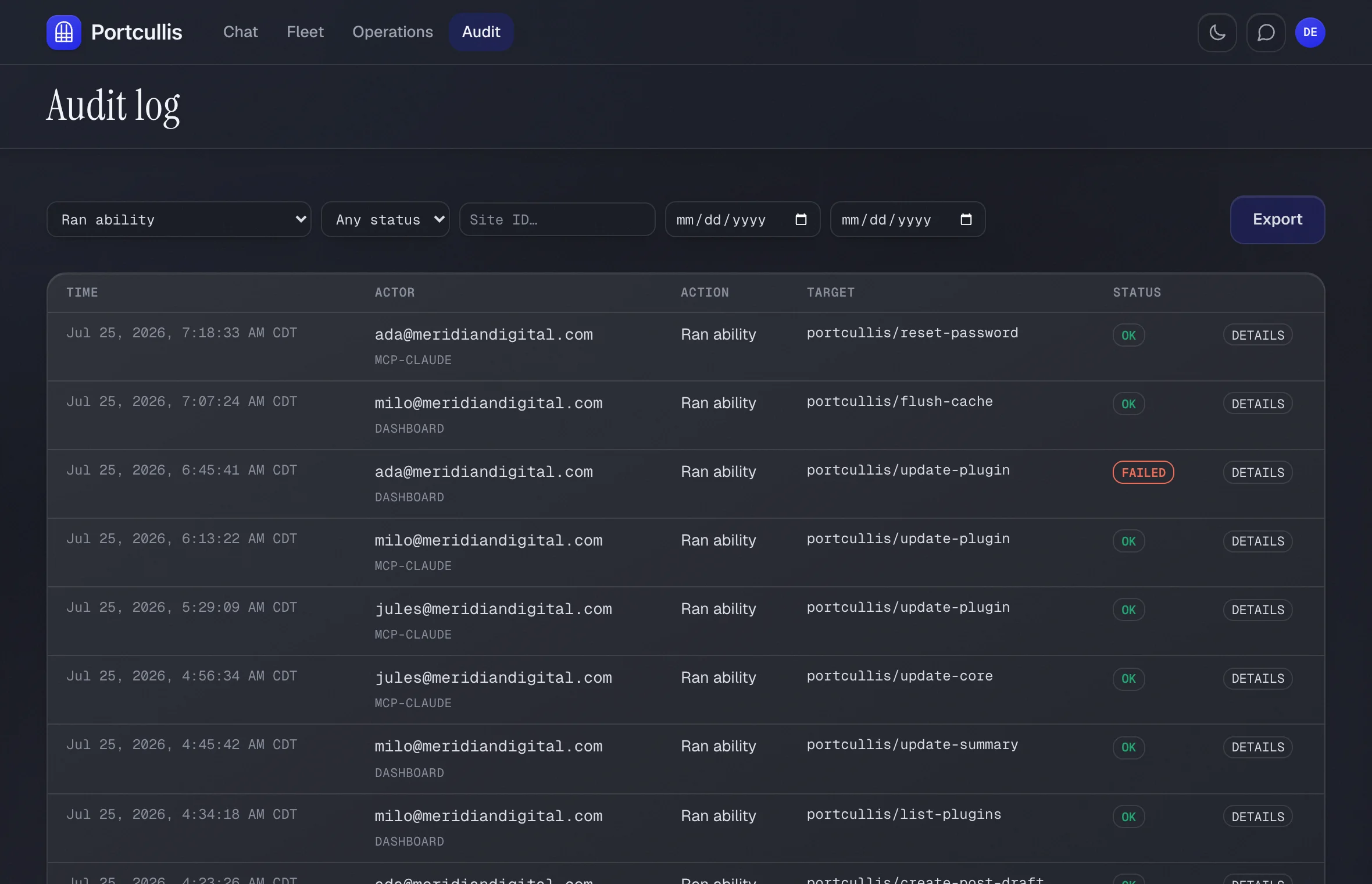
Keep the receipts
Every dispatched run is recorded: who asked, which site, which action, what came back. Filter it, export it, or read one site’s history from that site’s page.
Hand a contractor one client, not the keys
A member reaches your whole fleet by default. Restrict one, and they reach only the sites you assign them — nothing else on the fleet is browsable, searchable or addressable for that person, and an action they run is checked per site against that assignment on every single call.
It is the same mechanism either way, which is what makes it worth having. Everything on this page still applies to the sites a contractor can reach: the actions you switched off are still off, and the record afterwards names them.
- Your staff
- The whole fleet, and who gets what.
- A contractor
- Only the sites you assign them.
- Either way
- Same checks, same record of what they did.
The questions that come up before you connect
Weighing us against another way of doing this? See how the three approaches compare.
-
What can the AI actually do on my sites?
Thirty-five actions today — plugin, theme and core updates, content drafts, SEO fields, users, settings, and read-only diagnostics. Each is allowed individually, per site, and off until you allow it. Drafting and publishing are separate permissions, so an agent can write a post it has no way to push live.
-
Which AI clients does Portcullis work with?
Any MCP client you already trust, or the assistant built into the dashboard. Your client authenticates to Portcullis over OAuth 2.1 with PKCE. It never talks to WordPress.
-
Isn’t WordPress getting native MCP? Why do I need Portcullis?
Native MCP connects one site to one AI. You would still install it, hand over credentials, and govern each site by hand — times your whole fleet. Portcullis is the layer a single-site plugin cannot be: one place to set what AI may do across every site, one call to cut any site off, one record of what it did. We don’t replace what WordPress can do. We govern access to it, at fleet scale.
-
How is this different from a plugin that puts AI on each site?
Where the authorization lives. A plugin that answers the AI on the site itself is authorized per site — twenty sites is twenty connections, twenty sets of settings, and a bulk job is the assistant switching sites one at a time. Portcullis holds the authorization instead: you approve once, and every call still re-checks per site that you may reach that site. The per-site plugins go deeper on page-builder editing. We go wider, and we hold no credential doing it. There is a full side-by-side on the Compare page.
-
What if Portcullis is down or gets breached?
A breach gets nothing worth stealing — we store no WordPress credential at all, only public keys, and every token expires in about a minute. If we’re unreachable the AI simply cannot act until we’re back. Nothing runs unauthorized in the gap: unreachable means closed, never open.
-
Does the AI ever get my WordPress password?
No — there isn’t one stored with us to give it. Your WordPress holds only Portcullis’s public keys, so no password ever moves between you and us. Every action runs as a limited, scoped user on your own site, authorized one request at a time. The AI’s token and your WordPress never meet.
-
Do I have to install a plugin on every site?
Yes — one Portcullis plugin per site: install it, then approve the connection once. You don’t do that one at a time, though: paste or upload up to 200 domains and Portcullis probes them all, tracking each one so you can work the list. Each site still gets approved in its own WordPress admin — that approval is what proves you control it. The plugin adds no CSS or JavaScript to your front end and creates no database tables; settings live in WordPress’s own options table. It stores no password either — it verifies each request against Portcullis’s public keys and runs it as a scoped user. It needs PHP 8.0 or newer, a host that lets you install plugins, and WordPress’s Abilities API: in core from WordPress 7.0, or the free Abilities API plugin on 6.8+. We check before you connect, so you know either way in a couple of seconds.
-
Can I cut off access to a site?
Instantly, from the dashboard, one site at a time. Access was only ever a short-lived scoped token, so nothing lingers after — no credential to reset, no key to rotate.
Connect your first site Free for your first 10 sites — no card. Or email hello@portculliswp.com and ask us the hard version of any of it.